
Many modern businesses still rely on traditional PCs for their operations. But when it comes to remote business setups, startups, & regulated corporate industries, cloud desktop is their preferred choice. Cloud desktops enable the user to access a fully functional Windows ( Linux or software) on a remote server using a regular web browser or an app. On the other side, a traditional PC is a physical machine wherein the operating system, data & apps reside within the local environment.
In this article, we will discuss in depth both these concepts and their real-world uses to help you to make a final choice.
What is A Cloud Desktop?
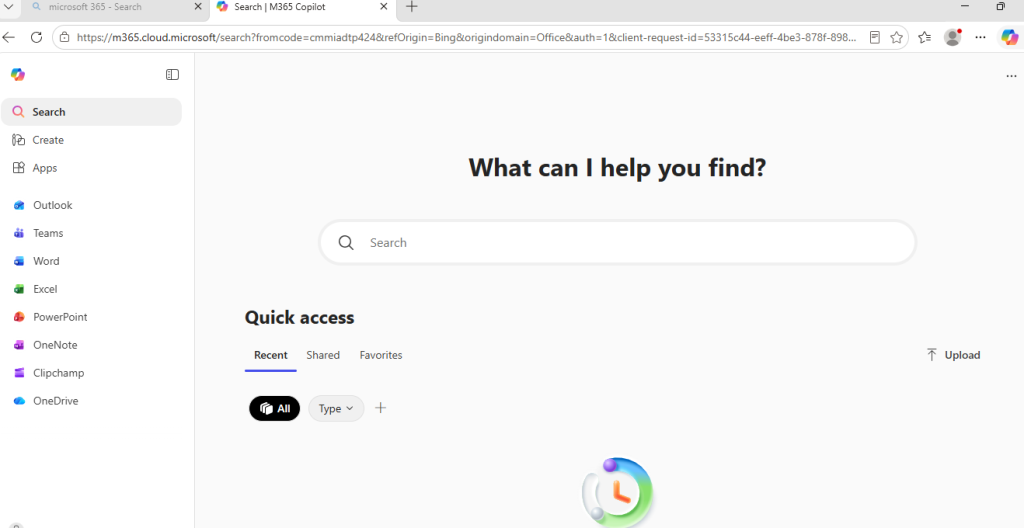
A cloud desktop is a virtualized Windows machine that runs on a cloud provider’s server. You can access cloud desktops from any device, be it a laptop, tablet, or a low-definition Chromebook. All your desktop, files, & app will behave as if they are located within a local environment. The real processing of data happens within the data centre and not inside the client device. You can check out our detailed remote setup guidance to know how this transition happens. smoothly
Here is a real-world example:
A CA (Chartered Accountancy) firm allows its employees to work in a remote setup from their homes. To avoid the expenses of purchasing a new PC, they are asked to use a cloud desktop solution for their work. Each auditor is well-trained to use a secure browser window, they know exactly how to log in & resume their work even while switching between multiple devices, such as mobile & laptop.
What is a Traditional PC?
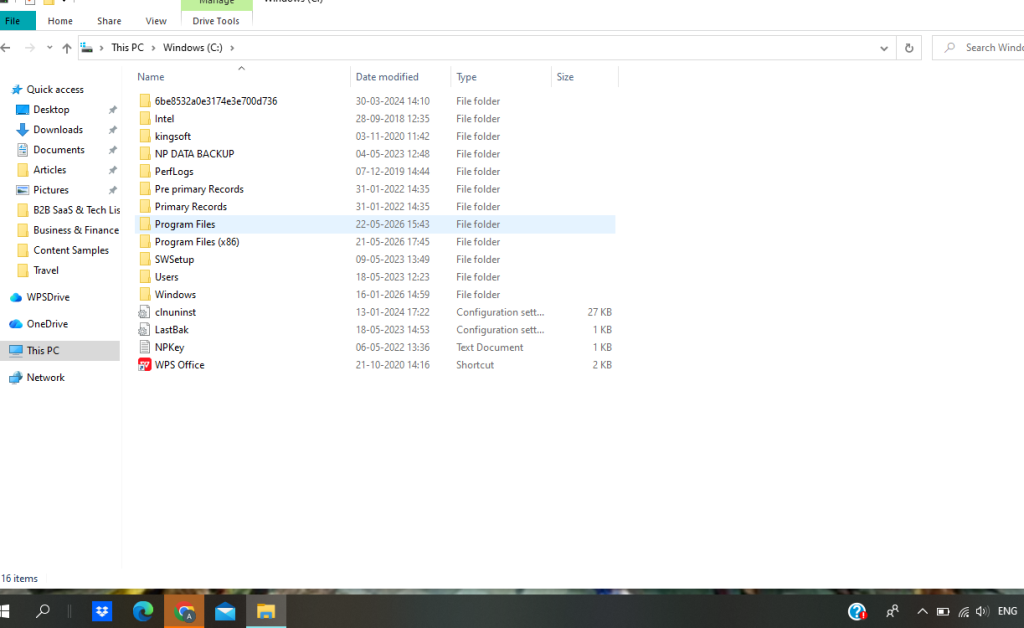
A traditional PC or a personal desktop is a physical device comprising hardware components, including HD, RAM & HDD/SSD. The operating system, software applications, & user data are stored locally on the computer. If the system isn’t updated locally, it logs in to the system periodically to manage security & patches.
Real-Life Example:
An interior design firm uses high-capacity desktops to run its design software, such as SketchUp & Adobe tools. The company prefers using high-performance GPUs & high-speed SSDs on each of their desktop to store large 3D & image files, even while creating a backup in the cloud storage.
When to choose a cloud desktop over a traditional PC?
To make a choice, ask yourself the following questions:
- Do you have around 30-40% of your employees working either remotely, through client sites, or from multiple workstations?
- Are you interested in paying for a monthly subscription plan rather than investing in heavy upfront hardware costs?
- Is the internet connection in your office stable, i.e., at least 10-20 Mbps download speed per user?
- Do you have control over your servers?
- Is your data safe in case of any device loss?
If your answer is “Yes’ to all the above questions, then Cloud desktop is the best choice for you.
When to choose a traditional PC over a cloud desktop?
- Does the majority of your workforce work from a fixed location without needing regular movement between multiple locations or devices?
- Do you have high-performance desktops or laptops that adequately support your employees’ current workflows?
- Is your team working from a location with unstable internet connections?
- Are you required to use resource-intensive applications that run locally, such as CAD, 3D rendering, or video editing applications?
- Would you prefer to maintain full control of hardware upgrades(RAM, SSD, & GPU) & managing security updates?
Pricing & Maintenance
Cloud Desktop:
- Depending on the features you choose, the basic price package ranges between ₹2500 & ₹4500 monthly for a mid-range Windows-based cloud desktop, which includes core apps, operating systems, and updates.
- Cloud desktops enable you to scale your workforce without adding any new physical hardware. Within a month of hiring, the employee logs into the cloud desktop without waiting for a new physical desktop to be ordered & configured for him.
Traditional PC:
- A standard business desktop costs ₹40,000 to ₹80000 in initial purchase, with a life expectancy of almost 4 to 5 years.
- Additional costs include installation of antivirus software, licenses, backup drives, & upgrading individual units.
User Experience & Performance
Cloud Desktop:
- With desktop virtualization, every user has a consistent experience with the same desktop, applications, & settings.
- Every individual user receives an update automatically as the provider is in charge of updating the OS & security patches.
Traditional PCs:
- You have complete control to upgrade RAM, SSD, & GPU for each user.
- Even with a slow internet connection, your office work continues as there is no dependence on cloud uptime.
Privacy & Security
Cloud Desktop:
- Cloud desktop guarantees a high level of data security as the data is stored in the provider’s data centre. If there is any data loss, the admin can log out the user from their account immediately.
- Providers use a similar level of security & practices that banks & SaaS tools are already using, such as multi-factor authentication, data encryption, & logging.
Traditional PCs:
- You have complete control over your data, but you must ensure that data encryption( using BitLocker) & strict access policies are enforced regularly.
- If an employee resigns & forgets to delete their machine or revoke the access, your confidential data is exposed to the risk of data breaches.
To Conclude
To get the best of both models, several organizations are operating on a hybrid model: cloud desktops for remote workers & traditional PCs for design & engineering departments.
Cloud desktops offer you flexibility, security, & minimizes the need for hardware replacement in the long run. If you are looking for a desktop with more powerful processing capabilities and the ability to function even offline, go for traditional PCs.
ProTip: While using a traditional PC, it is recommended to pair it with some form of cloud storage, such as OneDrive or a private cloud, to ensure sensitive data is safe regardless of whether the user is working from the office or remotely.
Frequently Asked Questions
Q. How is a cloud desktop different from a traditional PC?
A. A cloud desktop operates Windows on a remote server & you can access files over the internet from multiple devices, such as laptops, tablets, & home PC. In a traditional PC, data is stored locally on a physical machine. You can learn more by accessing our guide, VPS vs Remote Desktop, to understand the technicalities.
Q. Is a cloud desktop slower in speed compared to a traditional PC?
A. No, a cloud desktop performs almost similarly to a traditional PC while conducting your routine tasks. In case of heavy local tasks, including video editing, a traditional PC performs comparatively faster as ite eliminates network latency.
Q. Is it possible to use a cloud desktop on old laptops or tablets?
A. Yes, you can definitely use a cloud desktop on your old laptop or tablet, as the majority of cloud desktop servers are designed to use either a web browser or a lightweight client application.
Q. Who owns the data on a cloud desktop?
A. The ownership of data lies within the company in which you are working. The data is stored inside the cloud provider’s infrastructure. They are holding the data in your account as per the terms & conditions of your signed contract & data protection rules.
Q. Is it expensive to invest in cloud desktops?
A. Not really. There is only a monthly subscription fee that ranges between ₹2500 & ₹4500 for a mid-range Windows cloud desktop with no major hardware costs.