
When you see a developer shut their laptop screen, heading towards the conference room for a meeting, boot up a thin client while debugging the same line of code (no Git pull or environment configuration), they are most likely using RDP. Remote Desktop is not a backup solution. It’s a primary workspace for thousands of software engineers.
Developers use Windows Remote Desktop to keep their development space distinct from their actual computers. This segregation enables them to save time, secure their IP & access their development workspace from devices without local installations.
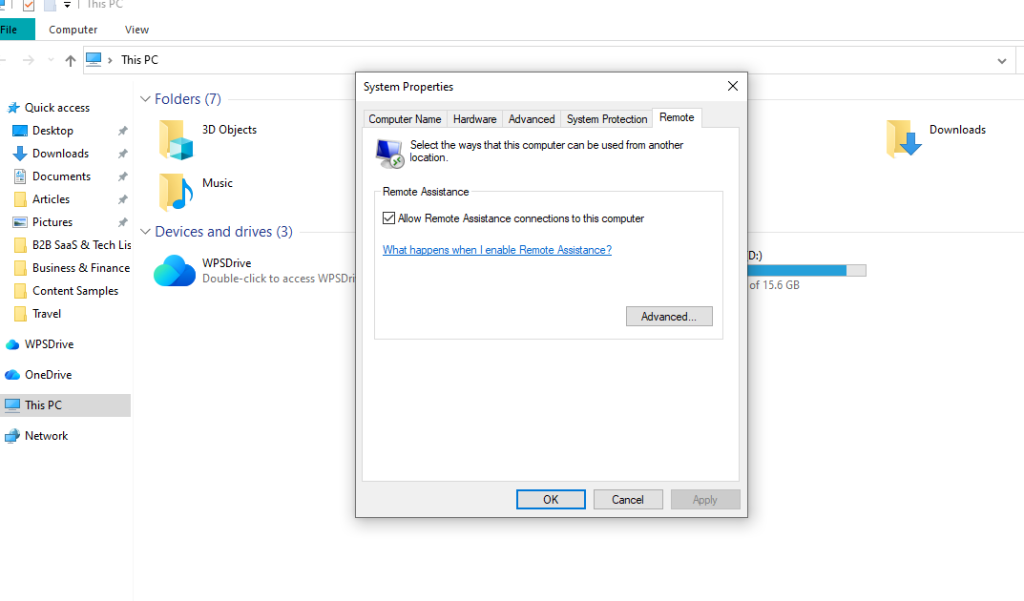
Let us understand a few reasons why developers trust Windows Remote Desktop.
1. Your PC May Shut Down Anytime, Your Work Won’t.
A developer at a mid-sized SaaS company in Pune found his laptop dead during the power failure. He brought his colleague’s laptop, launched the RDP connection, entered the IP address of his company’s desktop, & resumed working exactly where he had left off. The office computer stored all the code safely. The borrowed laptop did not store anything.
Local development connects all your work to a single device. But by using Remote Desktop, you are segregating your compiler, database, & environment variables to a remote Windows machine, which is active 24*7.
How it works:
- On your Windows desktop, open Settings> System> find “Power & Sleep.” Toggle on the “Never Sleep” option when plugged in.
- Download & install the “Windows App” from any device on which you will run Windows.
- After installing the app, use your username & gateway address to save the connection profile.
This way, you can easily switch between devices without affecting your work.
2. The Benefit of “Build Once.”
GitHub Codespaces & AWS Cloud9 are some well-known Cloud IDEs in the market. But the problem is that once you pause your work, your session is terminated. For e.g., a developer who tests a machine learning pipeline that might take approx 90 minutes might lose progress if the browser tab becomes idle.
Windows Remote Desktop ensures your live session stays active until you manually log off from your account. In 2025, researchers surveyed almost 400 developers and discovered that approximately 67% preferred using RDP over Cloud IDEs for long-running processes, as RDP does not time out inactive sessions by default.
3. Avoid Sending The Code Over Email
Often, small development teams share & receive code files over email or a USB drive. This is not a safe practice. In Windows Remote Desktop, the remote machine’s hard drive stores the source code. You can only view pixels on the screen.
As per Microsoft’s 2026 security roadmap, Windows 12 is planning to collaborate with RDP Hardened Mode, which blocks copy-paste or file redirection capabilities by default. It means developers can only use approved gateways. You can also enable this feature now through Group Policy.
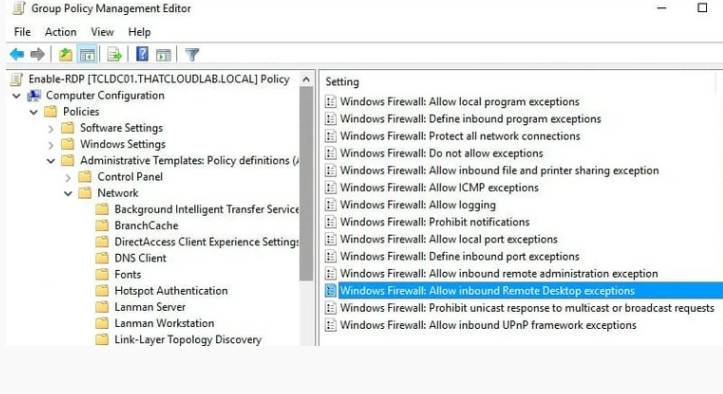
The following are the steps to enable the copy-paste feature:
- Use gpedit.msc on the remote host.
- Go to Computer Configuration>Administrative Templates>Windows Components>Remote Desktop Services>Remote Desktop Session Host>Device & Resource redirection.
- Enable the option” Do Not Allow Clipboard Redirection.”
- Run gupdate/force in the command prompt.
4. Testing Software Unable to Run on Mac or Linux
Many Windows-based software applications, such as legacy compilers, database management systems, and hardware simulation software, can run only on Windows; they will not run on Mac or Linux. Developers who prefer using Apple laptops have two choices: either opt for dual booting or use Windows virtual machine locally, which may lead to high battery consumption. A remote desktop enables developers to access a Windows machine in an office or cloud setup.
E.g., a developer working at a medical device manufacturing company wanted to test a firmware that communicates with a Windows driver. She accessed Windows Remote Desktop from her MacBook Pro. A USB port was already included in the remote machine to flash the firmware. The setup helped the company cut its costs of purchasing individual laptops for each developer.
5. Minimizing the Cost of Purchasing
Many companies waste their money by purchasing individual laptops for each developer. This adds up to the total cost for the company. A senior backend developer hardly requires a powerful GPU, but an ML engineer does.
Remote Desktop enables companies to save costs by purchasing budget-friendly laptops for their developers and purchasing only a few powerful remote workstations.
A recent study showed that a team of 20 developers in a tech company had reduced their hardware costs by 62%. They replaced 20 laptops that cost $2000 each, 20 basic models costing $300 each, and three powerful workstations that cost $4000 each. The total spending reduced from $40,000 to $18,000.
6. Handling a Slow Internet Connection
Remote Desktop sessions can withstand short Internet disconnections & automatically restore themselves within approximately 30 sec, as opposed to video call sessions that might drop out because of weak Wi-Fi connections. When there is a disruption in a remote session, the RDP protocol saves your clicks on the system until the network is restored.
A developer travelling to Germany via train experienced continuous network disconnections during a two-hour journey. When the remote session reconnected, the developer could easily resume his work from where he had left off. Had he used a local compiler for developing, it would have easily crashed because of interruptions.
To activate your frozen session, you can:
- Wait for at least 20 seconds before turning off Windows.
- If it’s still not working, close the Remote Desktop client window.
- Try to reopen & reconnect. A message will appear: “Your previous session disconnected. Reconnecting now.”
- You can access all your work even if it’s not saved, as the session was kept alive on the remote side.
Conclusion
Developers favour Remote Desktop for three main reasons: a persistent environment, hardware independence, & a strong security isolation. Your laptop is not a workspace anymore; it’s a window transformed into a remote workspace where your code runs. Close your laptop & stay inactive for hours, your work will remain the same as it was when you left.
If you are continuing to install Python and Node.js on your laptop, configure a single Microsoft Windows computer, enable network-level authentication, & access it from any other device. You will wonder why you didn’t choose it earlier. To better understand the difference between the remote versus the local setup, refer Cloud desktop vs Traditional PC.
Frequently Asked Questions
Q. Are there remote desktop applications available only for Windows-to-Windows connections?
A. Yes, Microsoft offers official clients for Mac, iOS, & Android. They also offer various alternatives for Linux users, including FreeRDP or the Windows app through Wine.
Q. How can one enable multiple monitor support when using Remote Desktop?
A. Multi-monitor support can be enabled using the Windows app. Open the display settings and enable the” Use all my monitors” option. This will span the remote session across both your local screens effectively.
Q. Can Remote Desktop work without a VPN over the Internet?
A. Remote Desktop can connect to the internet easily with no need for a VPN. You need to build a public-facing RD Gateway that encapsulates the RDP protocol in an HTTPS session(using TCP Port 443).
Q. How much maximum resolution is supported?
A. The maximum resolution supported by the remote desktop for local area network connections is 8k (7680×4320) under Windows 11.
Q. How will I know if my company supports RDP?
A. You can check by entering mstsc in the Windows Run dialog. If it connects, it means you have permission to use RDP. If not, it means the connection has been blocked.