
Selecting between a shared RDP & a dedicated RDP affects the operational security & baseline performance of an organization. The selection will determine the distribution & isolation of server resources.
A shared RDP operates within a multi-tenant model, which serves multiple independent user accounts with the same operating system. The shared configurations provide an economical way for basic utility tasks, but they also create a potential risk of resource contention.
A dedicated RDP, on the other hand, provides a completely isolated environment, with hardware resources allocated exclusively to the client. Because the hardware resources belong to a single customer, performance is predictable, and external workloads do not affect it.
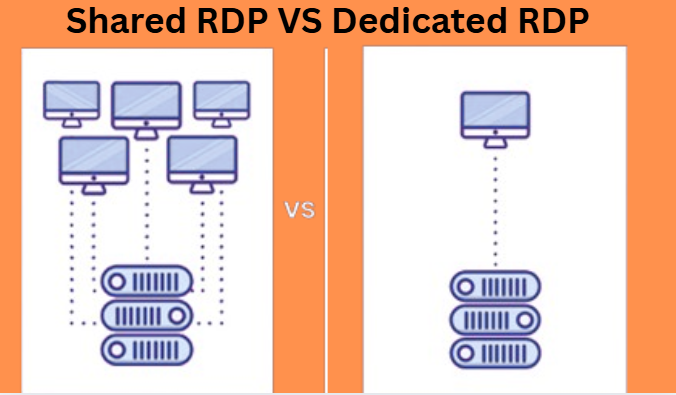
Let us understand both concepts deeply so that you can make a wise choice for your business.
Shared RDP
A shared RDP enables users to access a physical or a virtual Windows server simultaneously through different user accounts.
Key features are:
- Single Hardware Engine: The server’s CPU & RAM are viewed as “one” by the system. This may lead to a noisy situation if a user runs an intense data script, thereby creating a temporary lag for all other users on the server.
- Limited User Privileges: You are considered a guest on the server. You are not allowed to change the system’s core settings unless your service provider authorizes you to change the server’s firewall rules or install any custom applications.
- Shared IP: All the users on the server transfer their data using the same public IP address.
Let us view a real-world example of a multiplex cinema theatre to understand the concept of shared RDP.
Each person purchases a ticket for their respective screens( private desktop view); however, they all share the same lobby, restrooms, building power, and concession stand. If a massive crowd floods the theatre to watch a blockbuster movie, the infrastructure will slow down because of multiple requests, forcing people to wait a long time in line to get a ticket.
Similarly, a shared RDP operates under the same conditions as shared hosting, wherein each user has their own desktop, but they all share a common CPU, RAM, & network.
Dedicated RDP
A dedicated RDP usually comes from an admin RDP VPS, offering you individual rights to an isolated environment. The hardware resources that belong to your dedicated remote desktop are only yours.
Key features:
- Locked Virtual Resources: You have dedicated RAM & CPU cores. If any other server crashes on the same physical rack as yours, your dedicated area will stay functional.
- Unrestricted Admin Privileges: You will be allowed to use ” Run as Administrator” rights for all your tasks. You will have the authority to install applications, perform updates, and modify registry settings.
- Dedicated IP Address: Your server operates on a dedicated IP address. You have complete control over your online reputation.
Let us understand the concept with a real-world example of a leased office building.
When you use a dedicated RDP, it is similar to renting an entire commercial office space. You have full admin access(the keys to the building), you can tear down a wall, create your own security system, and use your own locks. You do not have to worry about how another person’s work will affect yours.
Real-Facts
- The “IP blacklist.”
If you are using shared RDP, whether for e-commerce or digital marketing, you are engaging in “Russian Roulette” with your brand. Because multiple users use the IP address of an RDP server. If an unknown user uses the RDP server to send out spam email or violates the platform’s service policies, this will result in the blacklisting of the user’s entire IP address by major networks.
- The Move to Security Compliance
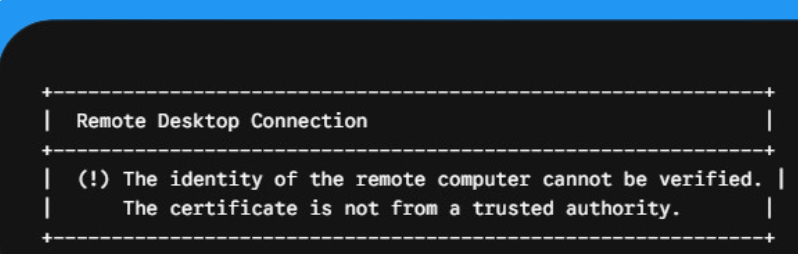
Microsoft has recently released security patches to stop unverified remote file access. In shared RDP, the system cannot provide each user with a unique cryptographic certificate because of the shared operating system. They often receive a
Users will see an “Unknown Publisher” message if they try to execute the file. With dedicated RDP, you can install your own Network Level Authentication(NLA) rules & custom digital signatures.
Steps to Connect to Your Chosen Connection
Regardless of whichever option you choose, you need to follow a uniform path to connect securely. You can follow these steps to connect your own system to a remote computer.
Step 1 – Open the application that you want, click on the ” Windows key“, and then type “Remote Desktop Connection.” Press the Enter tab.
Step 2 – Add your account details. Type in the IP address provided by your hosting provider and press the “Connect” button.
Step 3- Enter your security details. The RDP connection application will ask you to input your username & password.
Remember: If you are connecting to a dedicated RDP server, your default username is ” Administrator.” In the case of shared RDP, you will have a unique username.
Step 4- Verify the connection security. The system will warn you about the site you are connecting to. It’s an updated security feature included in the Remote Desktop Connection application. If you are using a connection from a trusted provider, check the option “Don’t ask me again for connections to this computer“, and enter “Yes.”
How to Decide…
Shared RDP is an ideal choice,
- When you want to run routine web-browsing tasks or file transfers.
- If you are working on a small-budget project where a performance drop will not affect you financially.
- You do not need a custom & interactive third-party application or tools.
Select dedicated RDP,
- If you use automated bots, scrape public data, or engage in Forex/crypto trading, a 2-second delay results in financial loss.
- You are working with sensitive customer data & financial metrics that require high-level separations.
- You manage platform profiles with pristine static IP addresses that previous usage could flag as automated accounts.
Once you have decided, the next step is to decide what size of server resources your business needs. You can read our detailed article on how to choose the right RDP plan to determine how much RAM, CPU power, & storage you will actually require for your daily operations.
Concluding…
If you are searching for affordable ways to do some non-computing remote tasks, shared RDP is the best option. But if you want a reliable RDP service offering responsive performance & customizable security features, invest in dedicated RDP to secure your digital workflow.
Frequently Asked Questions
Q. Do other users have access to our personal files on shared RDP?
A. No, properly configured shared RDPs provide strict separation at the user level. While other users may use shared resources, they cannot access your personal files or your own live desktop unless the RDP server permissions are misconfigured by the system administrator.
Q. Is it possible to use automated software on a shared RDP?
A. Most providers prohibit using automated tools, macros, and scripts with heavy processing loads. Such programs consume CPU resources that are available for other users, which may lead to service suspension.
Q. Which is the safest option between the two?
A. No doubt, it’s a dedicated RDP that offers you a completely isolated environment, thereby eliminating the risk of malicious file transfer. You can also use custom firewalls, MFA, and unique security patches for enhanced safety.