
Remote working is no longer restricted to IT companies. Many businesses have already incorporated remote access to their office & home computers. Designers, freelancers, accountants & students prefer remote desktop while travelling. With remote desktop connection, you can easily control another computer through the internet (as if you were telecommuting or working from a remote desktop) while your actual workplace might be in a different location.
There are many remote desktop solutions available in the market, but many people still struggle with doubts: how can I securely access my remote desktop from any location without making any complicated configuration?
In the article, we will explain simple methods to set up a remote desktop so that you can easily access it from anywhere.
Defining Remote Desktop Access
Remote Desktop Access enables you to use your computer from any part of the world. You can easily open files, run a program, view your workplace system, & help someone solve their system’s problem remotely. A few examples of remote desktop access are:
- When a graphic designer has to travel to another city and needs to use an editing program that is located on their office computer.
- When a business owner wants to view his billing software from his home.
- When a student wants to access the files he saved on his hostel computer during the holidays.
Instead of carrying heavy systems with you while travelling, you can simply connect to your existing computer over the Internet.
Things To Remember Before Getting Started
Before accessing a remote desktop, ensure that you have:
- A well-powered host computer
- A stable internet connection
- A remote desktop software application
- Login details & a strong password
One of the most common mistakes made with remote access and the use of remote desktop applications is having the host powered off. To properly access your work remotely, the host must remain “on” with a stable internet connection.
Practical Ways To Access Remote Desktop
There is no single solution that will suit every person’s needs. To make a decision, you must answer these questions:
- What’s the purpose of using it?
- Am I a tech-savvy guy?
- Is security important to me?
Once you find answers to all these questions, you can choose any of the following methods to access your remote desktop.
- Install Remote Desktop on Windows
Windows has a built-in remote desktop feature & does not require any additional software installation. To set up the remote desktop:
- Go to settings. Open the system.
- Click on “Remote Desktop” and select the “Enable Remote Desktop” option.
- Note down the name of your PC.
Once you have enabled Remote Desktop, install the Remote Desktop app on the device you want to connect from.
Office workers, people with personal computers, & small business teams can use this method to access Remote Desktop.
Drawback: While this method works well on private networks, when you are accessing it outside your home location, you may need router setup, which might also be confusing to use.
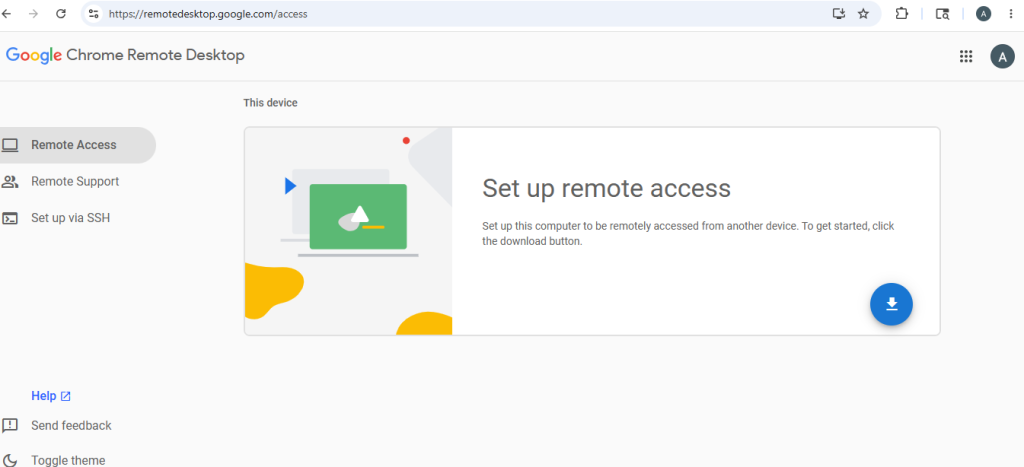
- Use Remote Desktop by Chrome
For beginners who are still learning how to use it, this is one of the best methods to connect. Chrome Remote Desktop enables you to connect to a computer through a web browser, and you need not have any technical knowledge to set up your own network.
You can follow these steps to install Chrome Remote Desktop:
- Install Google Chrome
- Open Chrome. Add Chrome RDP extension.
- Create a 4-digit PIN.
- Using the PIN, log in to your Google account on both devices.
After connecting both computers to the same account, you can easily access your other computer from laptop, tablet, or mobile phone.
Reasons why is it most preferred:
- It is easy to install & set up.
- It is highly compatible with both Android & iPhone.
- It does not have any complex router settings. A non-tech person can also use it simply.
- It is available free of cost.
Real-life scenario:
A freelance video editor travelling from Delhi to Chennai can easily access large video files on his home desktop PC without having to carry any external hard drive.
- Use cloud remote desktop tools
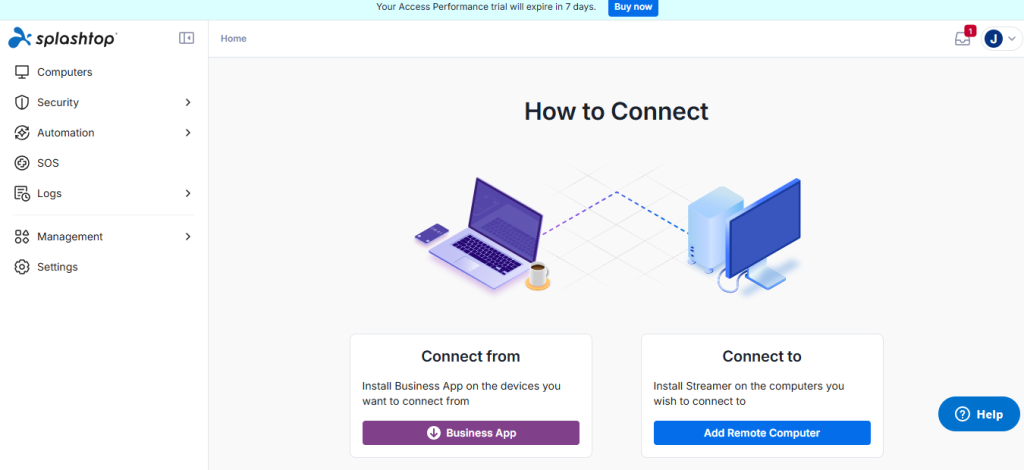
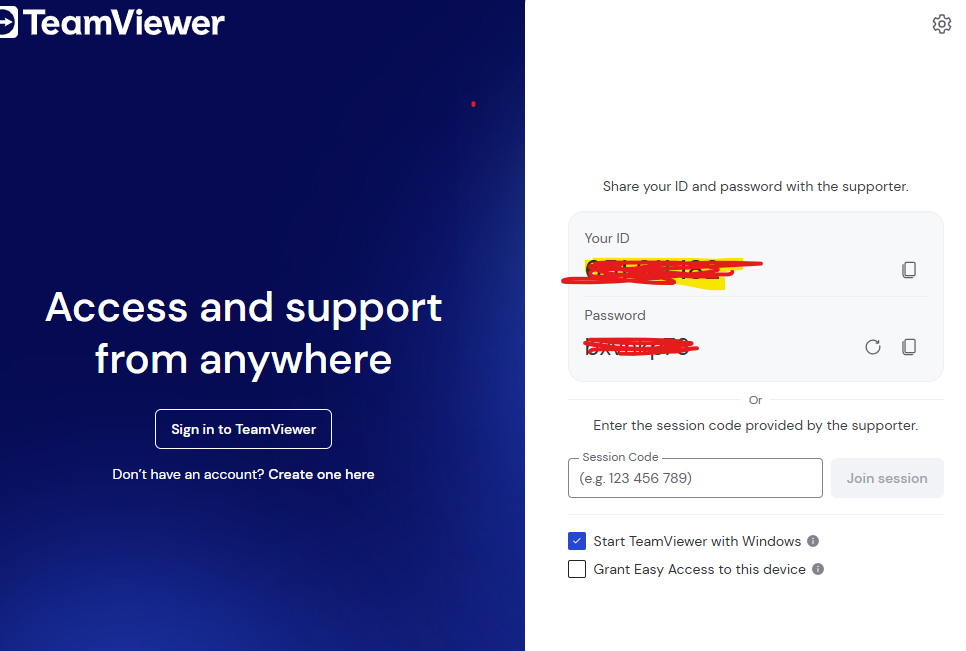
Cloud remote desktop solutions are quite popular in businesses today. AnyDesk, TeamViewer, & Splashtop are some commonly used tools. These solutions help in establishing secure connections without requiring manual configuration of network devices.
Reasons for its popularity:
With businesses placing more focus on flexibility, many companies prefer hybrid work models, making remote desktop access a part of their routine operations and not just limiting to emergency situations. Here is a detailed comparison between Cloud Desktop vs traditional PC.
Useful feature you cannot ignore:
Some Remote Desktop applications can automatically downgrade image quality if you have a weak internet connection. This helps to improve stability & lag issues, especially when using slower broadband connections. This is also a useful feature for people living in small cities or using mobile hotspots to access remote desktop.
Steps To Access Your Office Computer
Prioritize security over convenience. Many users compromise their system security either by using weak passwords or by connecting to unsecured public Wi-Fi networks.
Here are some general tips for security:
- Enable two-step verification: Always use two-step verification if possible. Even if a hacker obtains your password, they won’t be able to log in without generating code using a two-step verification process.
- Do not connect to public networks without protection: In case you have to connect to such unsecured networks like in airports or public cafes, use a VPN or Virtual Private Network to encrypt your website traffic.
- Update your device regularly: At times, old software has security holes in it. Update your security system, internet browser & apps frequently.
- Activate automatic lock: Set your computer to lock itself automatically after disconnection from your session. this will help to prevent unauthorized access to your computer.
Pro tip: People who leave their computers running all throughout the day to access remote desktop tend to use more power. To overcome this situation, you may use Wake-on-LAN support on your home computers. This will allow you to power up your computer remotely whenever you need it at home or at office. It will also reduce power consumption & improve the overall lifespan of your computer.
Wrapping up
Having access to your remote computer is no longer considered a luxury, it is a necessity. You can work remotely, manage business systems, or view personal files when away from home by efficiently setting up your environment. This will reduce the number of devices you need to travel with and save your time & energy.
For beginners, the easiest way to access a remote desktop is by using Chrome Remote Desktop. More established businesses use advanced products Splashtop and AnyDesk for team access & security.
If you configure your remote desktop setup properly, you can easily work from anywhere virtually without losing access to your computer.
Frequently Asked Questions
Q. Can I connect to my remote desktop from international locations?
A. Yes, you can connect to your remote desktop in an international country, provided you have internet access on both devices.
Q. Are there any charges to be paid for using Chrome Remote Desktop?
A. No, Chrome Remote Desktop is available free of cost for personal use.
Q. Can we connect to a remote desktop using mobile data?
A. You can connect to your remote desktop over mobile data, provided your connection is stable.
Q. My remote desktop connection is experiencing lag,what’s the reason?
A. You may experience lag in your connection if you have low internet speed, high-display quality settings, or any background downloads.