
Remote Desktop Protool is one of the most popular applications used by millions of people around the world to connect to their office or home computers remotely, as if the user were physically at the remote computer. RDP provides users with direct access to underlying operating system and network of a remote computer. It is also one of the most easily targeted applications systems by the cybercriminals.
By default, RDP creates a large hole in firewall to allow access to the remote computer via internet. If you don’t take any action to prevent attacks, within few hours an automated scanning programme will identify your system and start exploiting vulnerabilities to get inside the system.
The question is, “What is the current state of RDP security?” RDP is inherently insecure out of the box, but by taking some simple steps to configure it correctly, you can make it more secure.
In the article, we will review how Remote Desktop security operates currently, some real-world examples of failed connections and specific steps needed to ensure your data safety.
The Real Threat Of Getting Hacked Via Remote Desktop
When your PC is setup for remote access, it begins to take connection request from external environment. The computer uses port 3389 as the actual entrance into that computer. The tool itself is not coded properly, but the problem is that criminals are constantly searching the internet for computers that haven’t closed their openings to access this tool.

Real World example: The Automated Guessing Game
Let us assume you have automated hacking bots that acts like criminals walking down the road to check the door handles of every car they find until they find an unlocked car. Likewise, when you expose Remote Desktop to the internet, the automated bots will locate your system within hours. After your system is located, they will launch attacks on your system to guess the password. They will try thousands of different common password combinations to find the one that works for them.
If you have a basic password such as Password123 or Mumbai2026, the automated system will easily gain access to your system. Once they have access to your system, not only will they steal your files but can also take your entire system hostage and demand ransome. For more comprehensive defensive strategy, follow our guide how to protect an RDP server from unauthorized access.
“Zero-Day” Memory Leaks
Having a strong password does not guarantee the safety of your system’s sensitive data. As long as there are flaws in your software applications, a hacker will easily find a way to exploit those vulnerabilities. Many a times researchers find significant flaws in your Remote Desktop program that allow hackers to send a broken message directly to your RDP application and exploit it.
The two security vulnerabilities CVE-2026-42908 and CVE–2026-45639 reveal that a smart hacker could force your system to leak data from your computer’s memory before you enter a username and password. This may include your active login keys and current session data, thus providing hackers a backdoor to your system.
The Secret Trap: Malware in Remote Desktop Files
While many internet safety sites warn against hacking, there is also a way to hack your system remotely that is not well known: malicious .rdp files.
Everytime you create a Remote Desktop connection to your desktop, you also get a small file that ends with extension .rdp. Such files are popular among the hackers who use it to create fraudulent emails. Depending on how the malware was coded, the hacker could use this unauthorized access to copy the contents of your local hard drive, steal the passwords stored in your web browser or even keep a watch on you via a webcam.

Action Taken By Microsoft
Microsoft has updated Windows 11 to protect your system from cyberattacks. One major update is when you attempt to open an .rdp file, Windows will by default block all automated sharing features on your system. You will receive a clear warning message when you attempt to open an .rdp file, which will give you an opportunity to decide whether or not to grant the hacker access to those resources immediately.
Steps to Secure Your RDP Connection
A. Network Level Authentication
Network level authentication is a service that requires your identity verification before a full remote system is established. Automated attacks that are used to take advantage of memory flaws before landing into the Connection Screen are stopped completely by enforcing NLA over all incoming connections.
i) Press Windows key, type into Remote Desktop settings, and press enter.
ii) Click on the advanced option located under the main Remote Desktop toggle.
iii) Check the required NLA box to connect to your system.
B. Use a Virtual Private Network
To secure RDP, insted of connecting directly to the internet, use a VPN to create an encrypted tunnel for all your website traffic. After logging into the VPN, your PC will have access to the Remote Desktop login. Thi helps to prevent your system from automated scanning bots.
C. Limited Access
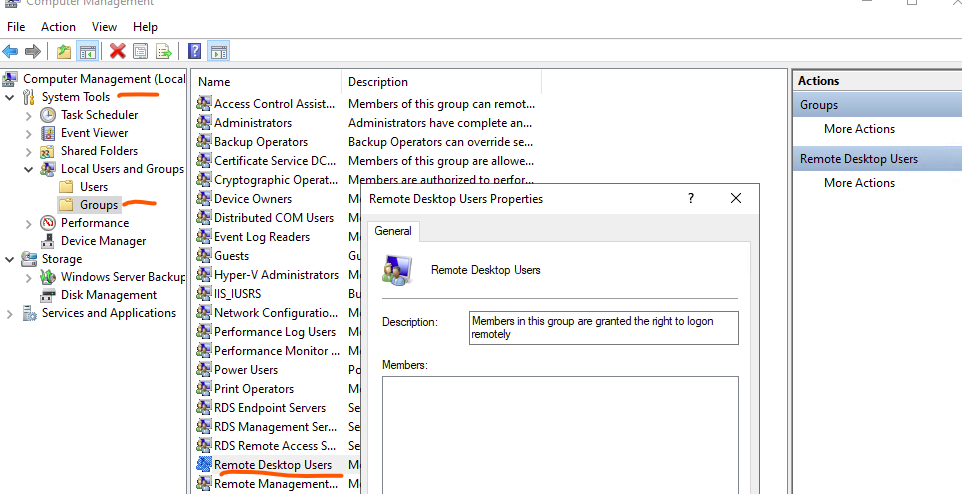
By default, all administrator accounts on your PC can connect remotely. But it’s advisable to restrict the access so that only certain non-administrative profiles can connect. To limit the access:
i) Type in Computer Management in the search bar.
ii) Navigate to System Tools > Local Users and Groups > Groups, double click on Remote Desktop users.
iii) Click on Add and type in the exact account name you wish to add and remove unnecessary users.
Think Beyond: Unique Security Alternatives
If configuring corporate firewalls or registery settings gives you anxiety, don’t worry! There are easier alternatives to secure your remote access.
- The Invisible Cloak: With the help of reverse-proxy tools such as Cloudflare tunnels, you can remotely access your desktop without exposing Port 3389 or RDP to the internet. It will establish an outbound connection to a secure cloud, allowing you to log into a secure web portal first, and then the cloud platform will securely send your screen data to your computer.
- The “Pass Through” Remote Machine: Instead of connecting to your work computer directly, use a “Pass Through” Remote machine to log into a secure and isolated cloud-hosted virtual machine. You’ll be able to use that temporary cloud-hosted virtual machine to access your primary work files on your work computer. If someone were to gain access to your connection, they would have access to an empty, temporary cloud environment rather than your actual hardware. Checkout our latest blog on RDP vs TeanViewer vs AnyDesk to find right environment fro your workflows.
Conclusion
Although an incredibly powerful and handy tool, Windows Remote Desktop is also an extremely insecure tool by default.
If you are just a casual Remote Desktop user and want to keep it enabled but aren’t planning on setting up any kind of security (VPN or enforced NLA or very complicated paaswords), just don’t leave it enabled. You need to completely disable Remote Desktop functionality. The threat of data breaches and ransomware is too great to take chances with. Consider using remote software from another company taht already has all the necessary security settings pre-configured for you.
Frequently Asked Questions
Q. Is Remote Desktop Protocol secure to use on your home Wi-Fi?
A. Yes, as long as you are using a secure password for your router and do not have your computer connected to the internet. Never use RDP while using a public Wi-Fi network such as at a coffee shop or airport, unless you connect to a reliable VPN connection.
Q. Does changing the default port number for RDP from 3389 maake it more secure?
A. Automated bot style scans can be deterred with non-standard port numbers, but all other forms of attacks will occur irrespective of the port number.
Q. Can ransomeware be deployed through Remote Desktop?
A. Yes, RDP is one of the primary attack vectors for ransomware against businesses. If hackers gain access to your system, they can run destructive programs that will encrypt your files or claim your data as ransom.